-Does your computer fail to bootup?
-Does your computer freeze and reboot?
-Cannot access your data due to the lost password?
-Does your computer contain critical data?
-Don't have a recent backup?
-Reformatted your harddrive?
-Accidentally deleted files?
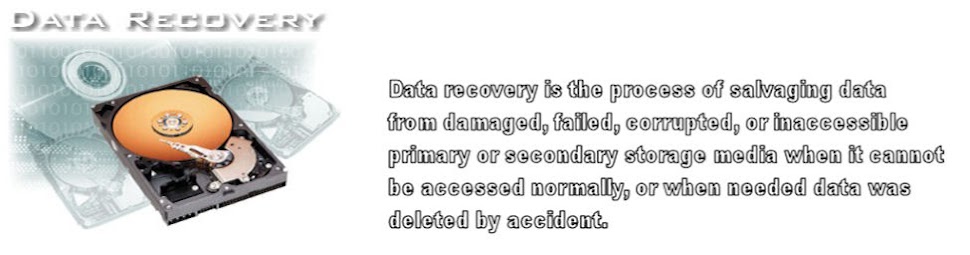
Our blog will provide the relevant information on free tools, techniques, and approaches to recover your computer and get your valuable data back.
Showing posts with label
optimize computer performance.
Show all posts
Showing posts with label
optimize computer performance.
Show all posts
Yes, until recently, the program was shareware. So, the users, who were reluctant to test it under non-freebie conditions, are free now to test and use it with no limitations.
With this utility, you can ensure your computer is running smooth, fast, and most efficiently due to the latest available drivers instantly updated for all hardware devices installed. Get the latest, correct updates for your PC's essential driver and software files with this free automatic update checker. Updating frequently prevents computer problems such as crashes, security holes and bugs, components and peripherals that don't work properly, and a slow computer.
RadarSync provides a detailed list of the updates your computer needs and helps you download and install them. RadarSync takes the guesswork out of the important task of keeping your computer up-to-date. With RadarSync, you know you're getting exactly the files your computer needs, without wasting time hunting around vendor websites.
Following the utility initialization on your PC, it is starting to scan your computer for any available updates. The scan process takes only a few minutes and the program pulls up the computer running components and their status in terms of the available drivers’ updates. RadarSync works by checking your PC against authors’ database of over 90,000 files. It searches for updates for the installed driver and software files on your computer, notifies you when they are available, and helps you download and install them in the right place.
The good thing is that there is an option to select the programs you want to update, so you are in power to choose only the drivers you are interested in. If there are the case, when, for some reason, you prefer to keep the existing driver version, you will be able to keep it with no problems to argue with this software.
Note that you need to be patient during the process of downloading and drivers update, and the time depends on the current computer status. While the software is downloading and updating drivers, be prepared to the situation, when your computer will temporary stop responding, since the operation will require significant computer resources.
OS: All Windows Operating Systems are supported, including Windows Vista and Windows 7. Choose the appropriate operational file from the authors’ webpage.
Note: Before performing any updated, I would recommend creating a restore point. Safety first!
CCleaner freeware was included in almost all the popular listing of the best free software for the 2007 and 2008 yearly reviews. CCleaner is short for “Crap Cleaner” - a perfectly appropriate name, with the program doing an excellent job of cleaning out unused and temporary files from the system that are accumulated over time during the normal computer use. This also includes quite accurate cleaning of Internet and PC usage tracks like browser cache, recently used files, web sites visited and more. User is able to select the items that he wants to be cleaned, and also specify the particular cookies that should be preserved on the computer. In addition, the program comes with a registry scanner that scans for invalid references with consecutive automatic fixing.
The program is very small, fast, and effective, allowing Windows to run faster, more efficiently and freeing for user a good chunk of the hard disk space. There are five or six video manuals for the software proper use on YouTube, so you can just search for them there, if you prefer detailed visualization approach to get familiar with all program features. As usual, I prefer portable software for personal use, if available, as it does not require installation and can be run from the USB external drive or stick. You can download the portable version, kindly offered by the author.
In the future, you can simply run inquiry for the available updates from inside the program, clicking on the link Check for updates in the lower right corner.
CCleaner assists in the uninstallation process by allowing users to uninstall programs from CCleaner itself. In addition, CCleaner also allows the alteration of start-up programs, similar to the Microsoft Windows MSConfig Utility. Users can disable several start-up programs to free up processor speed at start-up.
CCleaner is available in 35 different languages, and encountering over 225 million downloads, this utility is very popular among users.
Developers’ website: http://www.ccleaner.com/
Hard drive maintenance is an easy way to improve computer performance and keep its productivity in the acceptable range long after it was purchased. Hard drive performance can be impacted by the volume of information stored on the drive.
An easy explanation is to consider for every instance of a file the operating system indexes the entry. As well if your drive is close to being full this leaves limited space for caching by the operating system. Caching is how the operating system stores files that may be needed but are not necessary at the moment. Files that are needed are stored into RAM. Without this free space your operating system will not function optimally and consider if there is no space for the drive to use caching the operating system will not boot. The general rule is that the hard drive should not be occupied by the data for more than 70% of its overall capacity, does not matter how big is it.
Knowing the effects of a full drive, you can see the necessity for maintenance. On of the easiest ways to maintain drive space is to control the data on the drive. Uninstalling nonessential programs can greatly impact the amount of free space on a hard drive. You can review the programs installed by opening the control panel and selecting "Add and Remove Programs" (Windows XP and 2000) or "Programs and Features" (Windows Vista). Here you can review the programs installed and each is labeled with a notation of how often the program has been used. If there are programs you no longer require you may want to remove them to add to your free drive space.
Another option you may consider if you do not already have a second drive or partition is to use either an external or internal drive to use as storage. A secondary drive can be used to store your documents, back up files, and even programs. This is ideal as the C:’ is the only drive that requires this critical space. Storing files on a secondary drive will not affect performance. As the master Hard Drive has higher chances to get corrupted, storing essential data on Slave gives more security to the information. If the primary drive crashed, you can use the secondary drive the same way you used it before, without any system modifications needs.
Cleaning your drive of temp files and other unnecessary files is a quick way of freeing additional space. There are many ways to complete this task but using "Disk Cleanup" is the easiest option. To use disk cleanup go to Start>All programs>Accessories>System Tools and select the "Disk Cleanup" option. Once the interface opens review all file types which can be reviewed and make your selections accordingly.
The last step to better drive performance is to perform a hard drive defrag. Defrag (short for defragmentation) organizes the files on a drive in a consecutive pattern which allows the operating system to access the files faster. Running defrag will as well lessen the load on drive indexing options. To perform defragmentation of the hard drive once again browse to Start>All Programs>Accessories>System Tools and select "Disk Defragmenter" option. Note that a drive must have at least 15 percent free space for Disk Defragmenter to completely and adequately defragment it. Disk Defragmenter uses this space as a sorting area for file fragments. If a volume has less than 15 percent free space, Disk Defragmenter will only partially defragment it. To increase the free space on a volume, delete unneeded files or move them to another disk.
Once All steps in this series have been completed you should notice a difference in performance. Ideally you should complete this list once every month to maintain system performance.
While Windows OS is equipped by default with all the system applications, mentioned in the review, the standard programs are far from being the best on the market in their categories. There are multiple alternative software utilities on the market, and there are indeed many good programs to consider. Review the free software section of the site to pick the programs for your ongoing operations. And you can extend the lifetime of your Hard Drive and preserve the high performance results.
Sources and Additional Reading:
http://www.pcregistrycleaner.com/blog/drive-maintenance/
http://billmullins.wordpress.com/2008/02/21/hard-drive-maintenancefree-diagnostic-applications/


 Posts

